|
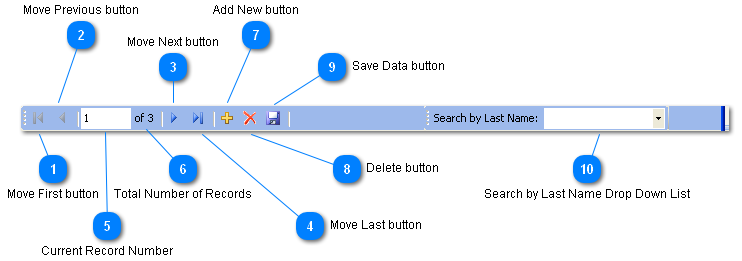
The Move First, Move Previous, Move Next, Move Last buttons refer to the Data Records Table.
 Move First button
In the above image the button is not available because the current record is already the first record. See Current Record Number.
| |
 Move Previous button
In the above image the button is not available because the current record is the first record so there is not previous record.
| |
 Move Next button
| |
 Move Last button
| |
 Current Record Number
Shows the record number of the currently displayed record.
In the above image the currently displayed record is record number 1 (one) and there are 3 (three) total records.
| |
 Total Number of Records
Tells the user how many records exist. The user can not change this field directly. The user can change it by creating new records or deleting records.
| |
 Add New button
Creates a new Data Record with all fields blank.
| |
 Delete button
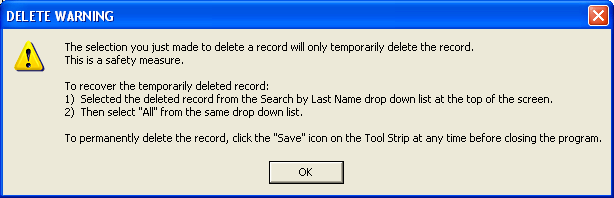
A popup message, as seen below, explains why the delete is temporary and how to delete a record permanently.
| |
 Save Data button
Saves the currently displayed record.
| |
 Search by Last Name Drop Down List
Clicking on the drop down arrow on the right side of the Drop Down field displays a list of Last Names in the Data Records Table.
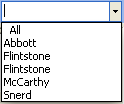
Below is an image of the list after the arrow has been clicked.
Clicking on a name in the list displays that name in the Data Entry window.
If there are multiple clients with the same Last Name (such as Flintstone in the above image), selecting any one of them will display the first person with that Last Name. The Data Records Table will display all the clients with the selected Last Name and only those clients with the selected Last Name. The user can then click the desired client in the Data Record Table.
To restore the Data Records Table to display all records select "All" from the Drop Down List. "All" should be the first item in the list.
The user can also type in the blank area to the left of the drop down arrow. Then clicking on the arrow will automatically select the first person whose Last Name begins with the letters typed. Nothing will be automatically selected if nothing matches the characters typed. This feature is not case sensitive
| |
|
|