|
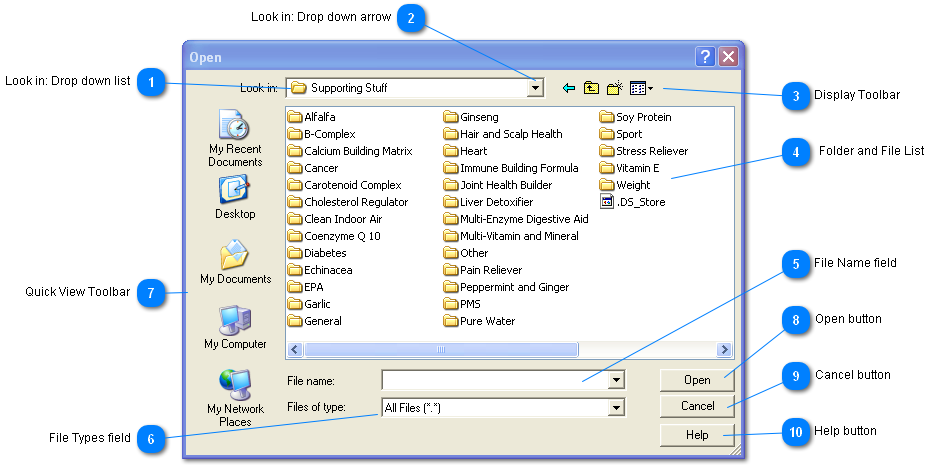
 Look in: Drop down list
Click the arrow Look in: Drop down arrow on the far right of the Look in: Drop down list to see the file structure of the currently selected location.
Click on any of the items in the list to go directly to that item.
| |
 Look in: Drop down arrow
| |
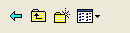
 Display Toolbar
The icons on the Display Toolbar are are from left to right:
-
Go to Last Folder Visited
-
Up One Level
-
Create New Folder
-
View Menu
On the View Menu click the tiny drop down arrow just to the right of the icon and select a choice. Experiment with this to see what the various choices look like.
| |
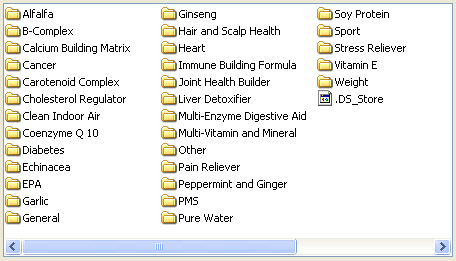
 Folder and File List
| |
 File Name field
Click on the name of the file or folder you wish too open. Or select the file from the drop down list that appears if you click the drop down arrow on the right side of the field.
| |
 File Types field
Allows, you the user, to display only certain types of files.
Click the drop down arrow on the right side of the field to see the choices.
| |
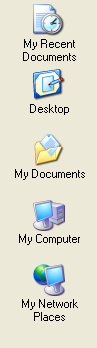
 Quick View Toolbar
Click any of the icons on the Quick View Toolbar to go directly to that area of you computers file structure.
| |
 Open button
Opens the selected file or folder. If a file was opened then the Open File Dialog also closes.
Double clicking on a file or folder in the Folder and File List has the same effect as clicking on a file or folder and then clicking the Open button.
| |
 Cancel button
Cancels any actions and closes the Open File Dialog.
| |
 Help button
Displays a Pop-up message explaining how the Open File Dialog reacts to previously opened files.
| |
|
|